

Home » Help
Simple Sticky Notes Quick Start Tutorial
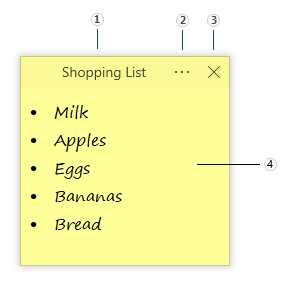
- Note Title
- Note Menu
- Hide Note
- Note Area
To create a new sticky note
- Double-click on the simple sticky notes system tray icon.
- alternatively,
- Right-click on the simple sticky notes system tray icon, and then select New Note.
- Click the Note Menu button, and then select Delete.
To hide a sticky note
- Click the Note Menu button, and then select Hide.
To change the color of a sticky note
- Click the Note Menu button, and then select Color.
Text editing/formatting
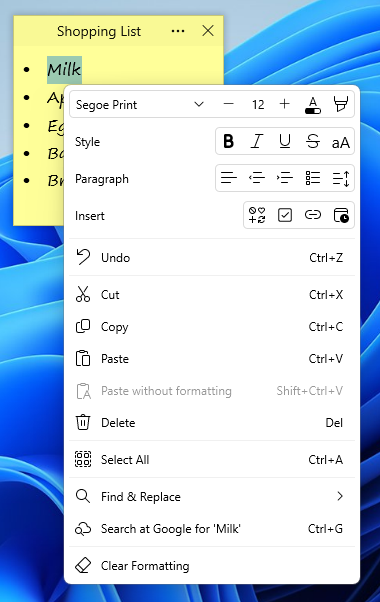
To format text in a sticky note
- Select the text that you want to change.
- Right-click on the note area
- Click the option you want from the text editing/formatting menu
Tray Icon and Tray Menu
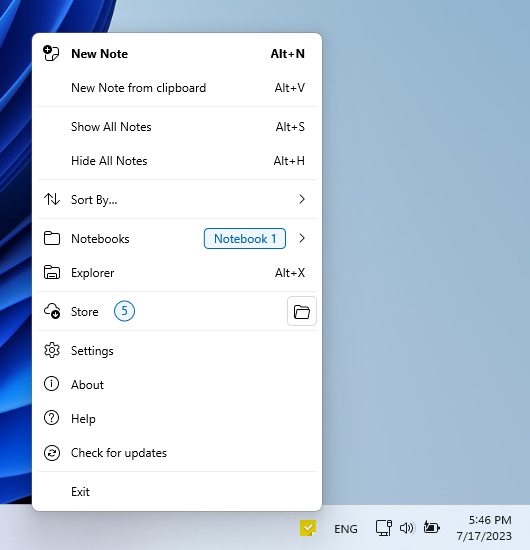
- Simple Sticky Notes tray icon is located at the notification area of the taskbar (the clock area)
- Right-click the tray icon to open the Simple Sticky Notes tray menu
- If you can't see Simple Sticky Notes tray icon please check this link How to Show or Hide Icons in the Windows 10 System Tray
Explorer (Manage your notes)
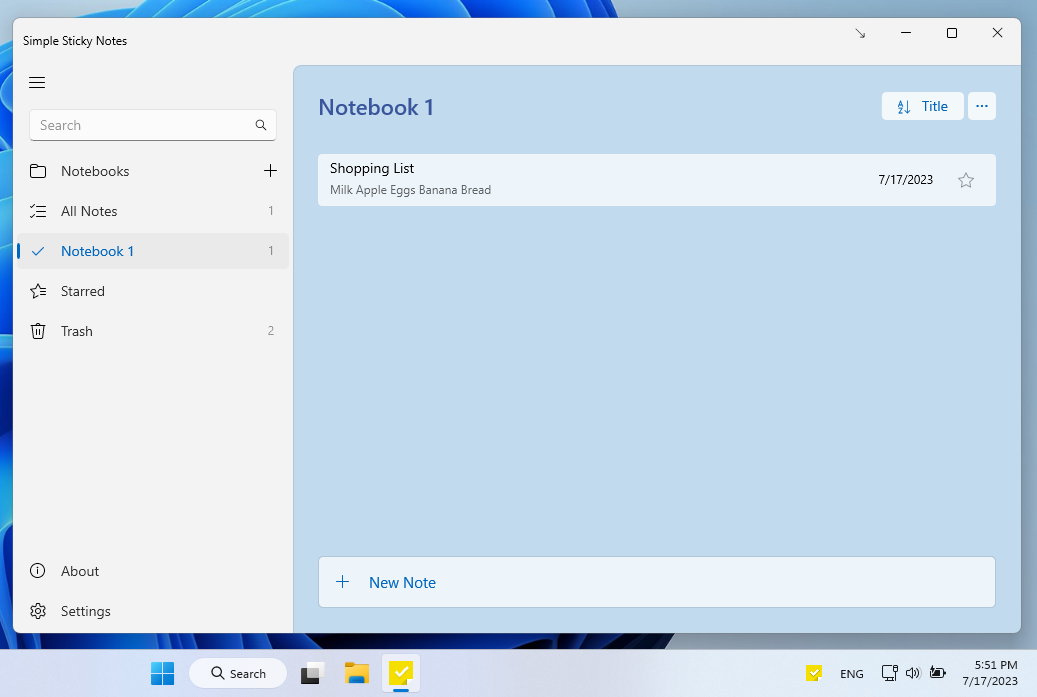
To open Explorer
- Right-click the tray icon and select Explorer from the menu (or press Alt+X)
Settings
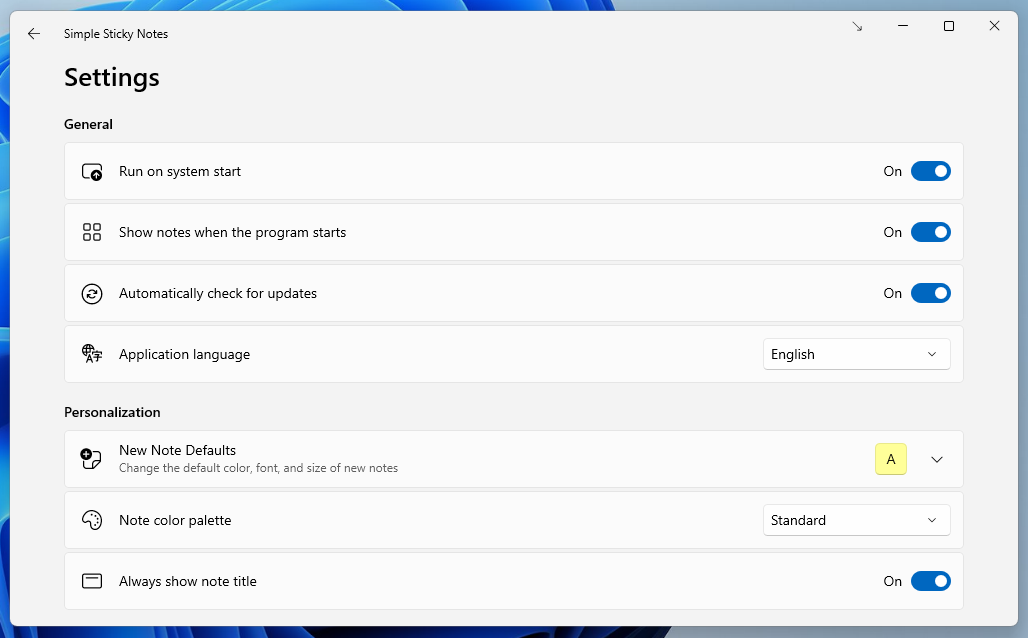
To open Settings
- Right-click the tray icon and select Settings from the menu
Note Color Palette
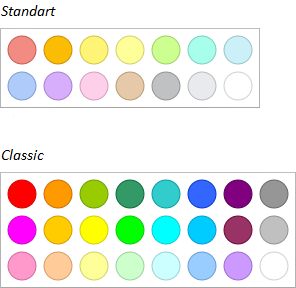
To change note color palette (for version 6.1 or higher)
- Select Personalization section from settings
- Choose your preferred color palette from the list ( Standard / Classic )
Backup & Restore
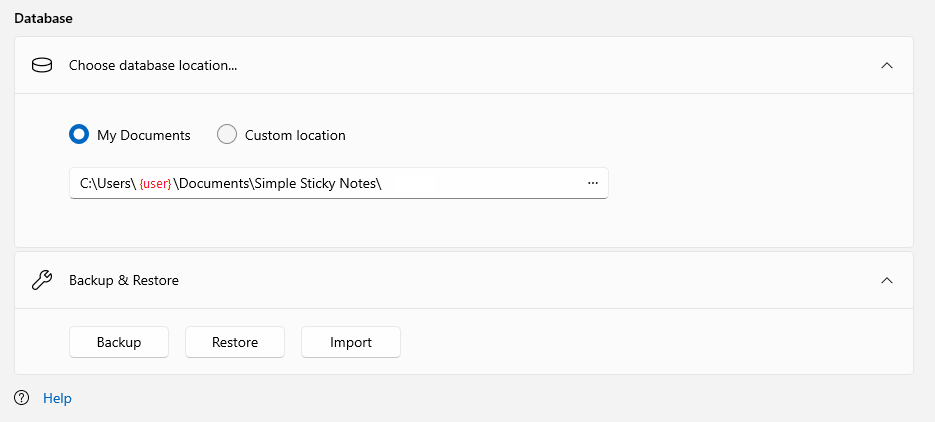
Backup your notes
- Select Database section from settings
- Click the Backup button, then choose a location to save the backup file (a folder on your pc, USB drive or other external hard drive)
- Select Database section from settings
- Click the Restore button, then select the backup file
- Close your Simple Sticky Notes before backup
- Copy the Notes.db file then paste it where you want (a folder on your pc, USB drive or other external hard drive)
- Close your Simple Sticky Notes before restore
- Copy the Notes.db file you backed up then paste to Simple Sticky Notes database location
- Notes.db file is stored in C:\Users\{user}\Documents\Simple Sticky Notes\ folder (If you haven't changed the database location)
- When you restore a backup, all notes currently in Simple Sticky Notes (including trashed notes) will be permanently deleted.